 BrowserAudio
Record your
browser’s audio
Record audio playing in your browser tab, split it into tracks and save as MP3.
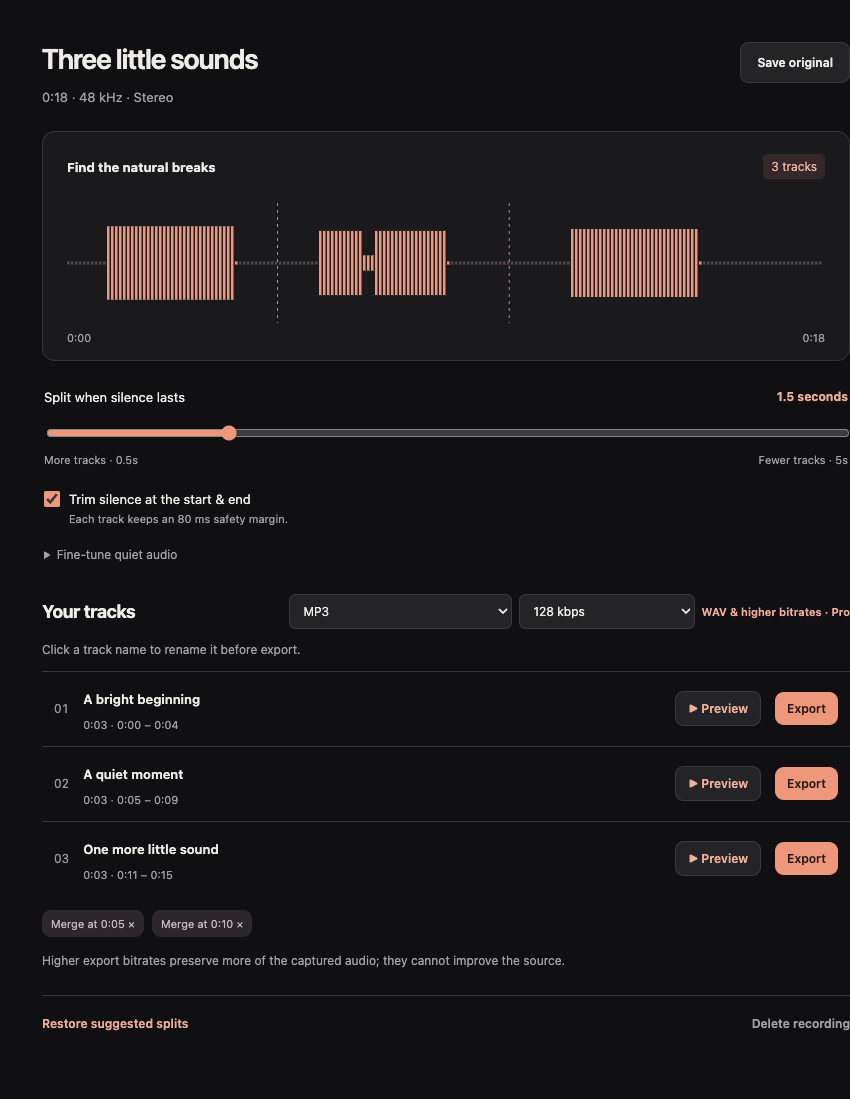
From browser playback
to files you can use.
A voiceover take. Your own music. An audio example for a slide. Keep the sound and get on with your project.
Record the tab.
Open your audio in desktop Chrome and choose Record this tab. Capture its playback without your microphone or other tabs.
Find the tracks.
Quiet gaps suggest separate tracks. Preview the results, merge unwanted breaks and trim quiet edges.
Give them names.
Name the whole recording, then label the parts. Find the right take without replaying a folder of anonymous files.
Save your audio.
Export individual MP3 or WAV tracks. Keep the unchanged browser recording too when you need a full backup.
A small studio.
Room to get it right.
The useful decisions, together: where a track breaks, how quiet is quiet and what to call the result.
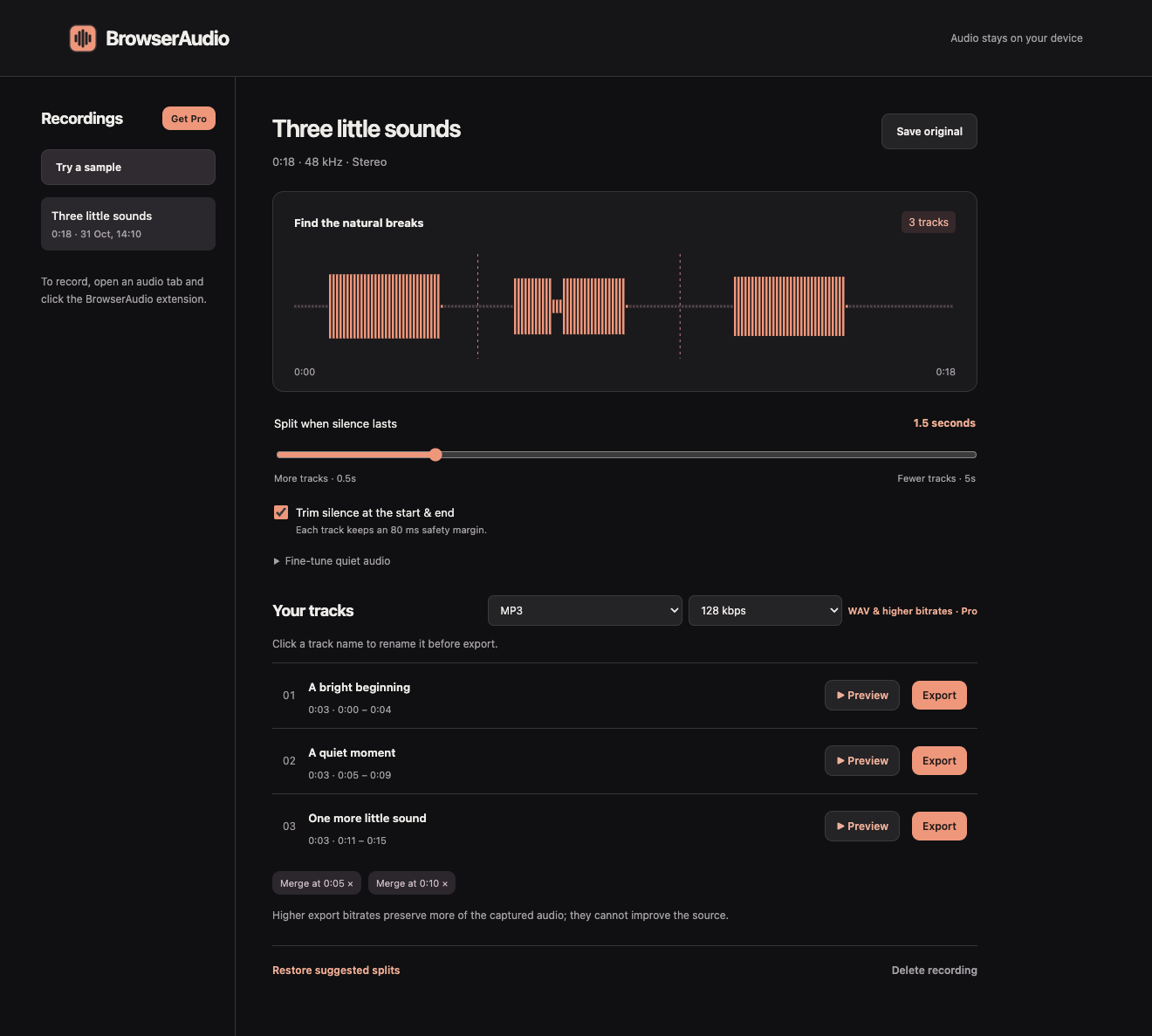
Let silence do the sorting.
Adjust the quiet gap and threshold. Keep a soft opening, merge an awkward break and leave the performance intact.
Find your track breaks ↗Choose a useful export.
Save a compact MP3 listening copy or 16-bit PCM WAV for your next edit. Higher settings preserve captured detail; they cannot restore a poor source.
Choose an export format ↗Keep control of your files.
Recordings stay in your local library. Export the tracks you need and keep a backup before clearing browser data.
Find your saved audio ↗For supported desktop Chrome tabs. Record audio you own or are allowed to save, and respect the source platform’s terms. Protected playback may be unavailable.
What would you
like to keep?
Explore the guides Before you record.
All help & support ↗Is BrowserAudio free to use?
BrowserAudio is free to use with some limitations. Free recordings last up to 3 minutes and export as MP3 at 128 kbps. Some recording lengths and export formats require Pro access.
Can I close the popup while recording?
Yes. The selected tab keeps recording while the popup is closed. Keep Chrome and that tab open, then reopen the recorder and choose Stop & save when you have what you need.
Where does the recording go?
Stopped takes save in the extension’s local library. Export creates a separate file through your browser. Check the downloaded file before clearing the library or removing the extension.
Your next useful recording starts in a tab.
Record a browser tab, split it into tracks and save the audio you need.